
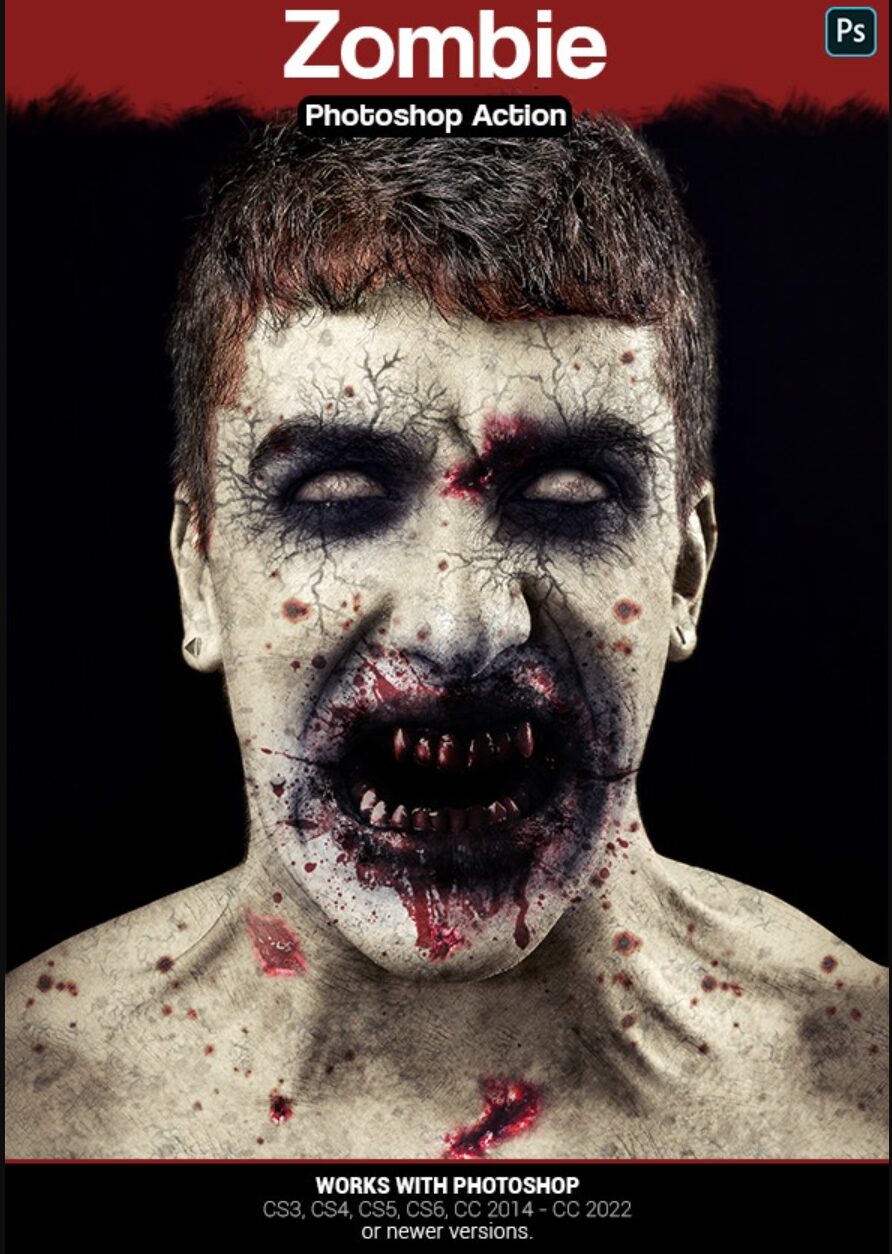
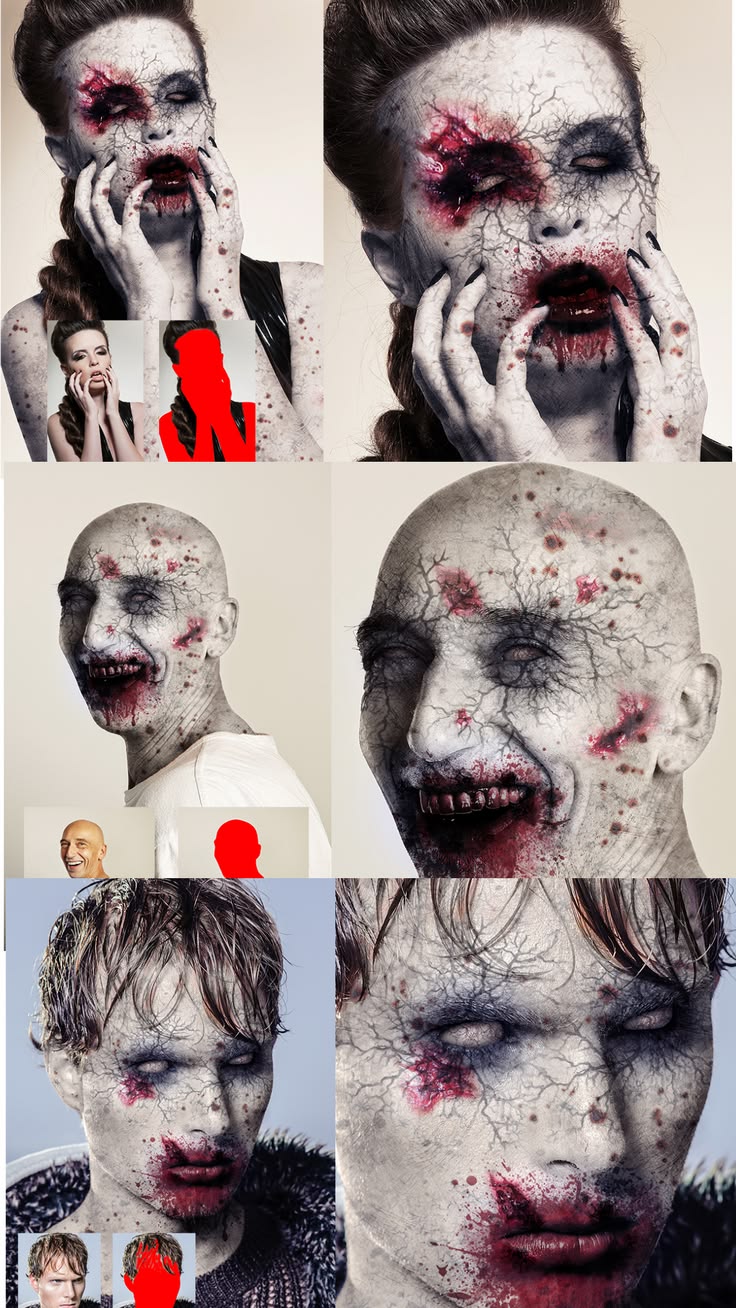
Zombie Photoshop Action This is a very scare and high-quality zombie effect which will created on your face blood stains, veins with black blood, wounds, dead skin and more. You can change the color of the eyes and skin color. This effect scare and surprise you incredible photorealism.
Zombie Photoshop Action Key Visual Features
- Zombie Skin Texture: Pale, decayed skin covered in dark veins and splatters.
- Mouth Transformation: Sharpened teeth with bloody cuts and dark bruising around the lips.
- Undead Eyes: Completely whited-out eyeballs with deep, hollow sockets.
Compatibility
- Legacy Versions: CS3, CS4, CS5, CS6
- Creative Cloud: CC 2014 through CC 2022
- Future Proofing: Compatible with newer versions beyond CC 2022
How to configure Photoshop to work with actions.
1. Make sure you are using the English version of Photoshop. Each action has been created and optimized to work only with the English version of Photoshop, so please make sure that you are using this version. If not, don’t worry: you can change the language of your version of Photoshop to English (and switch back again) using this method
By the way, my best selling Double Exposure Action has recently been updated, and you can now use it with the English, German, French, Italian and Spanish versions of Photoshop.
2. Use the RGB Mode and 8 Bits color. To check these settings, go to Image->Mode and check the “RGB color” and “8 Bits/Channel”.
3. Make sure that the option “Add ‘copy’ to Copied Layers and Groups” is turned on. This option applies only to CS5 and later versions of Photoshop. On the “LAYERS” panel, click on the menu icon, go to “Panel Options…”, and check that the “Add ‘copy’ to Copied Layers and Groups” is turned on.
4. Use a photo with 72dpi or higher. If you are using a photo with less than 72dpi, the action will not function correctly. To fix this, go to Image->Image Size and increase the resolution value.
5. Set the Opacity of brush to 100%. Set the Opacity of the brush to 100%. Select the “Brush Tool” and move the opacity slider to 100%.
How to combine my actions?
- Open your photo
- Play the first action
- Save the result as an image
- Open the previously saved image
- Play the second action