

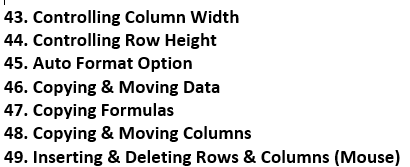
Microsoft Excel Topic 43 to 49
YouTube
Vimeo
Master Microsoft Excel: Managing Rows, Columns, and Data Formatting
Managing data efficiently in Microsoft Excel relies on mastering basic layout and editing techniques. Whether you are organizing large datasets, building financial reports, or creating schedules, knowing how to manipulate rows, columns, and formulas saves time and improves accuracy.
Below is a step-by-step guide based on the core techniques covered in Sir Muhammad Niaz’s Microsoft Excel Tutorial, explained in clear, easy-to-follow steps.
1. Controlling Column Width and Row Height
When text or numbers exceed a cell’s display area, Excel may show ### or truncate text. Adjusting column width and row height ensures all data is clearly visible.
Adjusting Column Width:
Manual Dragging: Hover your mouse over the border line between two column headers (e.g., between A and B). When the cursor turns into a double-headed arrow, click and drag left or right.
AutoFit: Double-click the border line between two column headers to automatically fit the longest text entry in that column.
Specific Width: Right-click the column header letter $\rightarrow$ Select Column Width $\rightarrow$ Enter a specific numeric value $\rightarrow$ Click OK.
Adjusting Row Height:
Manual Dragging: Click and drag the line between row numbers (e.g., between row 1 and 2) up or down.
AutoFit: Double-click the border line between row numbers.
Specific Height: Right-click the row number $\rightarrow$ Select Row Height $\rightarrow$ Enter the desired height in points $\rightarrow$ Click OK.
2. Using the AutoFormat Option
The AutoFormat feature allows you to apply pre-designed professional table styles, borders, colors, and number formats to a range of data instantly.
How to Use AutoFormat:
Select the data range you want to format.
If AutoFormat is not visible on your ribbon:
Go to File $\rightarrow$ Options $\rightarrow$ Quick Access Toolbar.
Choose Commands Not in the Ribbon and add AutoFormat.
Click the AutoFormat icon.
Select a design template from the pop-up window and click OK.
3. Copying and Moving Data
Excel offers simple mouse shortcuts and keyboard commands to duplicate or relocate data quickly.
| Action | Mouse / Keyboard Shortcut | Result |
| Copy Data | Select cells $\rightarrow$ Ctrl + C $\rightarrow$ Click destination $\rightarrow$ Ctrl + V | Duplicates the selected data. |
| Move Data | Select cells $\rightarrow$ Ctrl + X $\rightarrow$ Click destination $\rightarrow$ Ctrl + V | Relocates the data to a new position. |
| Drag & Move | Select cells $\rightarrow$ Drag border of the selection box to a new area | Moves data directly using the mouse. |
| Drag & Copy | Hold Ctrl while dragging the selection border | Copies data directly using the mouse. |
4. Copying Formulas (Relative vs. Absolute Reference)
Copying formulas allows you to apply calculation logic across entire rows or columns without typing the formula repeatedly.
Using the Fill Handle:
Select the cell containing the formula.
Hover over the bottom-right corner of the cell until the pointer turns into a solid black cross (+).
Click and drag down or across the target cells (or double-click to fill down automatically).
Note on Cell References:
Relative Reference (
A1): Adjusts automatically based on the target row or column when copied.Absolute Reference (
$A$1): Locks the specific cell reference so it does not change when copied elsewhere.
5. Copying and Moving Entire Columns or Rows
To reorder entire columns or rows without overwriting surrounding data:
Click the column letter or row number to select the entire line.
Hover over the border of the selection until the cursor changes to a four-sided arrow icon.
Hold the Shift key, then click and drag the column/row to the new location.
Release the mouse button before releasing the Shift key. Excel will insert the column/row between existing data without replacing it.
6. Inserting and Deleting Rows and Columns Using the Mouse
Adding or removing structural elements in Excel can be done directly with quick right-click context menus.
Inserting:
Insert Row: Right-click a row number \rightarrow Select Insert (a new row appears above).
Insert Column: Right-click a column letter \rightarrow Select Insert (a new column appears to the left).
Deleting:
Delete Row/Column: Right-click the row number or column letter \righ Select Delete.
Microsoft Excel Topic Home Page



Walikum Salam
Walikum Salam Main INSHALLAH Microsoft Excel ke all Shortcut Microsoft Excel ke homepage pe upload ker donga
Kabhi Ka bar Server Busy Ho jata hai ya ap ka Net
to ye msg ata hai
ab try kare Chal jaye ga
Dear Comment me on my Website
brother please call me or send m test with name for problem share of excel 03007749944